Google Review QR Code Generator
✓ Cloud or on-premise · ✓ Kiosk, QR, SMS, email and web · ✓ Live in one day
A Google review QR code is a printed code that opens your business's “write a review” window on Google directly, so a customer can rate you from their own phone in two taps. Paste your Google Place ID or review link below and download the QR as a PNG or a print-ready SVG — free, no sign-up.
Google review QR code generator
- Open Google's official Place ID Finder page.
- Type your business name into the search box on the map and pick it from the list.
- Copy the Place ID shown in the pop-up (it usually starts with “ChIJ”) and paste it here.
Already have the “Ask for reviews” link from your Google Business Profile? Switch to “From any link” and paste it instead.
Runs entirely in your browser — nothing you type is sent to us.
Print it at least 2 × 2 cm (0.8 in) and test with two different phones before you print in bulk.
How this generator works
Google gives every business listing a permanent identifier called a Place ID. When you add it to Google's review address — https://search.google.com/local/writereview?placeid=YOUR_ID — the link skips the search results and opens the review box for your listing. The generator above builds that link for you and turns it into a QR code.
- Find your Place ID. Open Google's official Place ID Finder, search for your business on the map and copy the ID from the pop-up. It takes about a minute.
- Paste it into the tool. The review link appears straight away. Press Test the link to check it opens your own listing, not a branch with a similar name.
- Download the QR code. Use the PNG for screens, emails and social posts, and the SVG for print: it is vector, so it stays sharp on a poster or a table tent at any size.
Already have a review link? Google Business Profile has its own “Ask for reviews” share link. Switch the tool to From any link, paste it, and you get the same QR code without looking up the Place ID. The QR code is static: it holds the link itself, never expires and keeps working without any account with us. The code is generated in your browser; the Place ID or link you type is not sent to Qmeter.
One code per location. A multi-branch business has a separate Google listing — and a separate Place ID — for every branch, so a single QR code for the whole chain would send every review to one branch. Generate one code per listing and label the print files by branch before they go to the printer.
Where to put your Google review QR code
A QR code works when it is in front of the customer at the moment the experience is fresh and their phone is already in their hand. The places that tend to work:
- The counter or checkout. A small stand next to the payment terminal, at eye level, with a one-line invitation: “Tell others about your visit — scan to review us on Google.”
- The receipt or invoice. Printed at the bottom of a paper receipt, or as a link on an e-receipt. It reaches every paying customer, not only the ones who stop at the counter.
- Table tents and menus. In restaurants and cafés the table is where people wait — for the bill, for a coffee — and waiting time is scanning time.
- Room cards and check-out folders. In hotels, a card in the room or in the check-out folder catches guests while they still remember the stay.
- Packaging and delivery bags. A sticker on the box or a leaflet in the bag works for deliveries and online orders that were picked up in store.
- Next to a feedback kiosk. If you collect feedback on a tablet or kiosk, print the QR on the kiosk stand or frame so that every visitor sees the invitation after answering — not only the ones who gave you a high score (see the next section for why that matters).
Avoid places where scanning is awkward: high on a wall, behind glass with glare, on the floor, or anywhere customers are queuing in a rush. Keep the invitation short and honest. “Scan to review us on Google” beats a paragraph of text.
Asking for reviews within Google's rules
Google wants businesses to ask customers for reviews. What it does not allow is shaping which reviews arrive. Under Google Maps' policy on fake engagement in user-contributed content, a business must not:
- Gate reviews. Selectively asking only happy customers — for example showing the Google link only to people who gave a high score in your own survey — is called review gating and is prohibited. Discouraging or blocking negative reviews is prohibited too.
- Offer incentives. Discounts, free items, prize draws or payments in exchange for a review are not allowed, even when you do not ask for a positive one.
- Review itself. Owners and employees must not review their own business, and must not post reviews about competitors.
Breaking these rules can get reviews removed and, in serious cases, restrictions placed on the Business Profile. Consumer law points the same way in several markets: in the United States, for example, the Federal Trade Commission's 2024 rule on consumer reviews and testimonials bans buying reviews and suppressing negative ones.
The safe pattern is simple: ask everyone, the same way, and let them post from their own phone and their own Google account. Don't hand customers a staff tablet to write the review on; the QR code exists precisely so they can use their own device. Your private feedback programme — the survey on the kiosk, the SMS after the visit — runs alongside, and its job is different: to catch problems early so you can fix them, not to filter who gets invited to Google.
Print tips that keep the code scannable
- Size. Keep the printed code at least 2 × 2 cm (about 0.8 in) for something held in the hand, like a receipt or a card. For a poster read from a distance, go much bigger — a common rule of thumb is a code width of roughly one tenth of the scanning distance.
- Contrast. Dark code on a light background. Inverted (light on dark) and low-contrast brand colours fail on some phones.
- Quiet zone. Leave the white margin around the code empty; the downloads already include it. Don't let a frame, logo or text touch the code.
- Finish. Matte paper and matte lamination scan better than gloss under shop lighting.
- Test before you print in bulk. Scan the proof with two different phones, and check that the review window opens for the right branch.
From more reviews to better reviews: where Qmeter fits
A QR code brings reviews in. What moves your rating over time is what happens next: replying, fixing the cause of complaints, and catching unhappy customers before they leave. That is the part Qmeter's Google review management handles:
- Every location in one workspace. Connect your Google Business Profile once and the reviews of every location on it arrive in one place, synced in real time with a scheduled re-check as a backstop.
- Faster replies. AI drafts a reply in one of five tones (Professional, Friendly, Apologetic, Grateful, Concise); you edit it and nothing is published until you press Publish. Reviews in other languages are translated inline.
- Low ratings become cases. A review of 3 stars or below automatically opens a ticket in Qmeter's closed-loop ticketing, with an owner and an SLA timer.
- Reputation KPIs per location. Average rating, total reviews, reply rate and average response time, each compared with the previous period, exportable to CSV, Excel or PDF.
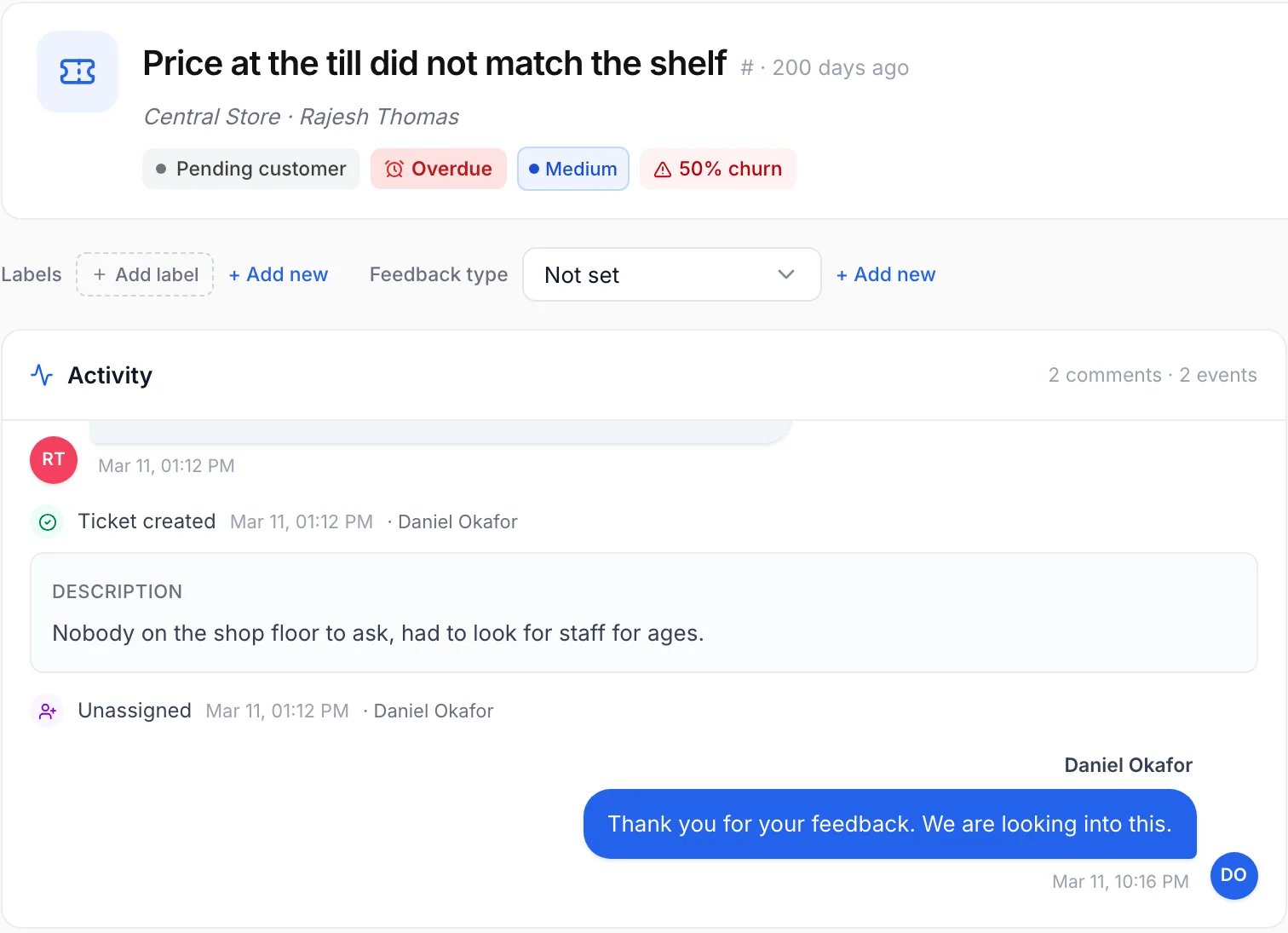
Alongside public reviews, Qmeter collects private feedback through kiosks, QR surveys, SMS, email and web links, and sends real-time alerts when a score drops. Together they give you both sides: what customers tell the world, and what they tell you first.
A weekly review routine for multi-location teams
- Monday: check new reviews per location and reply to every one — thank the positive ones briefly, answer the negative ones with a concrete next step.
- Midweek: look for repeated themes (waiting time, cleanliness, a specific product) and assign each to an owner.
- Friday: compare locations on rating, review volume and reply rate. A branch with very few new reviews usually has a QR code nobody sees — move it.
Example: a 40-branch retailer that prints one code per branch can spot within a few weeks which stores never get scanned, and fix placement there first.
Frequently asked questions
How do I create a QR code for Google reviews?
Find your Google Place ID with Google's Place ID Finder, paste it into the generator on this page, and download the QR code as PNG or SVG. The code opens the write-a-review window for your listing. You can also paste the Ask for reviews link from your Google Business Profile instead of a Place ID.
Is this Google review QR code generator free?
Yes. The generator is free, needs no account, and creates static QR codes that never expire. The code is generated in your browser and the Place ID or link you type is not sent to us.
Does a Google review QR code expire?
No. The QR code contains the review link itself, so it works as long as your Google listing exists and its Place ID does not change. Google can occasionally update a Place ID, for example after a listing is merged, so test your printed codes from time to time.
Can I show the Google review QR code only to happy customers?
No. Asking only customers who gave a high score, also called review gating, breaks Google's policy, and so does offering any incentive for a review. Show the same invitation to everyone and let them post from their own phone.
Do I need a separate QR code for each location?
Yes. Every location has its own Google listing and Place ID, so each branch needs its own code. One shared code would send all reviews to a single branch.
What size should a printed Google review QR code be?
At least 2 x 2 cm (about 0.8 in) for receipts and cards that customers hold in their hand, and larger for posters read from a distance. Use dark on light, keep the white margin, and test with two phones before printing in bulk.
Measure it at every location — live in one day
Feedback kiosks, QR and web surveys, SMS and email, real-time alerts and follow-up tickets in one platform. 14-day free trial.
✓ 15 minutes · ✓ No commitment · ✓ A real CX person